Product encyclopedia

Every SVG Editor feature, mapped and explained.

SVG Editor is a native Mac vector design app built around standard SVG files, classic floating palettes, precise Bezier editing, print-ready CMYK output, automation, and AI-assisted vector creation.

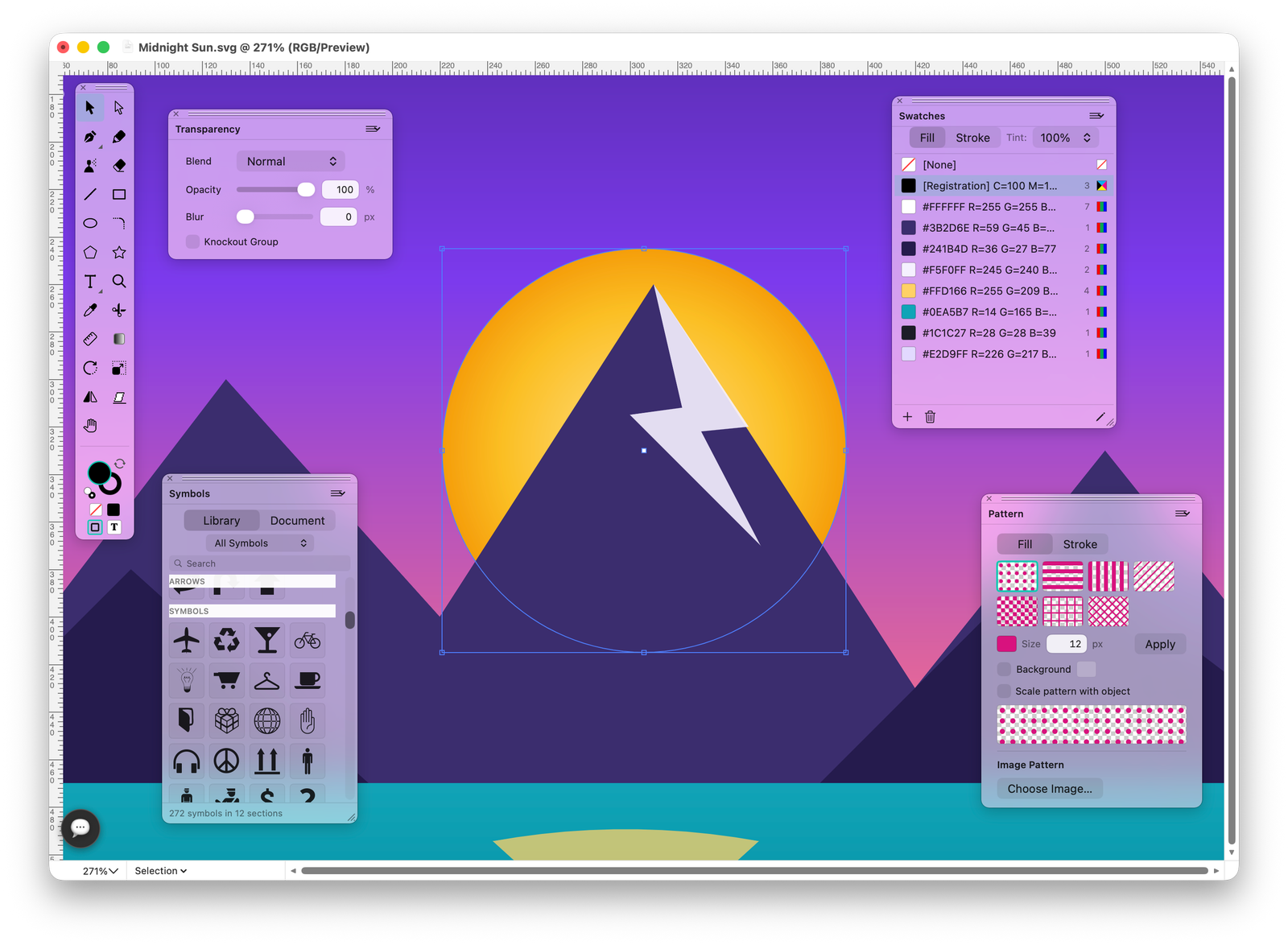
SVG Editor workspace with floating palettes and artwork on the canvas
24Core toolbox tools including pen, spray, eraser, measure and transform tools.
20+Palettes for color, layers, typography, links, scripts, AI and precision controls.
SVGNative document format with PDF, AI, EPS and image import workflows.
AIAI Vector Generator, Image Trace and PNG, TIFF, PDF export workflows.
What it is

A professional vector editor that stays SVG-native.

SVG Editor combines a classic illustration workflow with modern Mac technology. It is designed for logos, icons, posters, interface assets, technical drawings, print artwork, web graphics and editable AI-generated vector art.

Standard SVG at the center

Documents are saved as SVG, not as a locked proprietary project format. Layers, groups, paths, gradients, text, symbols, clipping masks and filters are represented as editable vector structures that can be inspected and reused elsewhere.

Classic Mac illustration workflow

The app uses floating palettes, menu commands, keyboard chords, rulers, guides, measurement fields and a compact two-column toolbox. It is built for users who want direct control instead of template-driven design.

Production-grade feature depth

Beyond basic shapes, the app includes pathfinder booleans, compound paths, clipping masks, typography controls, linked images, CMYK swatches, DeviceCMYK PDF export, scripting, image trace and a GPU canvas.

AI as editable vector input

The AI Console is not a raster image generator bolted onto the app. It creates or edits real vector objects so the result can be selected, recolored, reshaped, layered and exported like hand-drawn artwork.

Workspace

Floating palettes for every part of the document.

The interface is organized around small, movable panels. You can keep precision controls, color, layers, typography, links, brushes and automation visible while the canvas remains focused on the artwork.

The main workspace

The full workspace combines a central canvas with the Toolbox, Control Palette, Layers, Swatches, Gradient, Brushes, Symbols, Links, Scripts, AI Console and other panels. Hide all palettes with Tab or keep only the Toolbox with Shift + Tab.

Toolbox Control Palette Layers Navigator AI Console
Full SVG Editor workspace

Control Palette

A precision strip for position, size, scale, rotation, alignment, fill, stroke and opacity. It is the fastest way to make exact numeric edits without opening a modal dialog.

Window menu palette toggles

Every major palette is available from the Window menu: Toolbox, Control Palette, Swatches, Gradient, Pattern, Hatch, Brushes, Symbols, Stroke, Transparency, Character, Paragraph, Align, Info, Links, Layers, Navigator, Pathfinder, Spray, Scripts, AI Console and Feedback.

Navigator

The Navigator palette gives a minimap-style view of the document and the current viewport. It is useful when working on detailed posters, illustrations and large artboards.

Resettable workspace

Palettes can be rearranged for drawing, typography, print work, tracing or scripting. Reset Palettes restores a clean default layout when a workspace gets too busy.

Control Palette with transform, alignment, fill, stroke and opacity fields Control Palette Exact X/Y, W/H, scale, rotation, alignment, stroke, fill and corner controls in one horizontal strip.
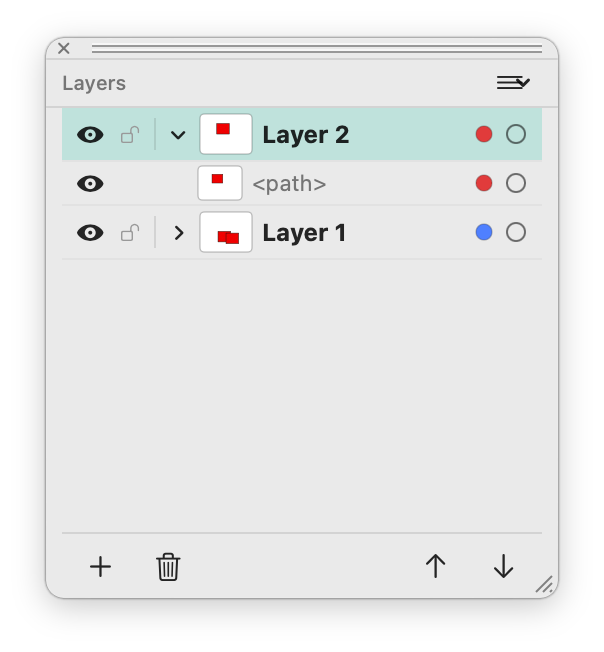
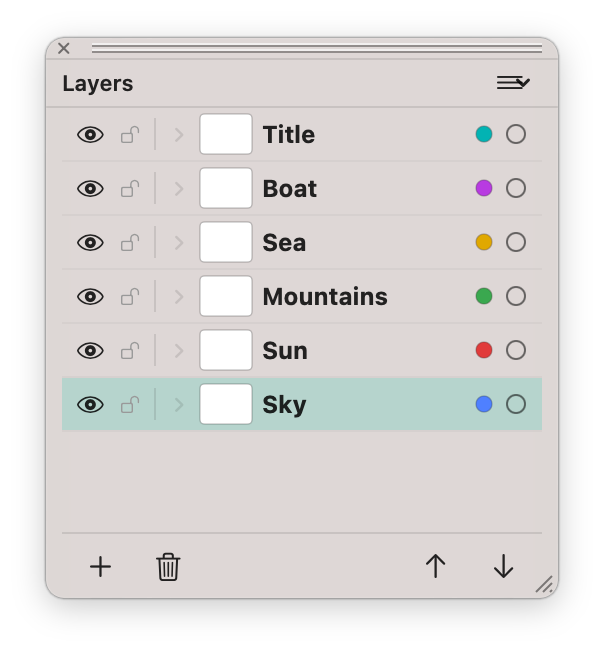
Layers palette with visible, locked and color-coded layers Layers Layer visibility, locks, disclosure, object rows, layer colors and stacking controls.
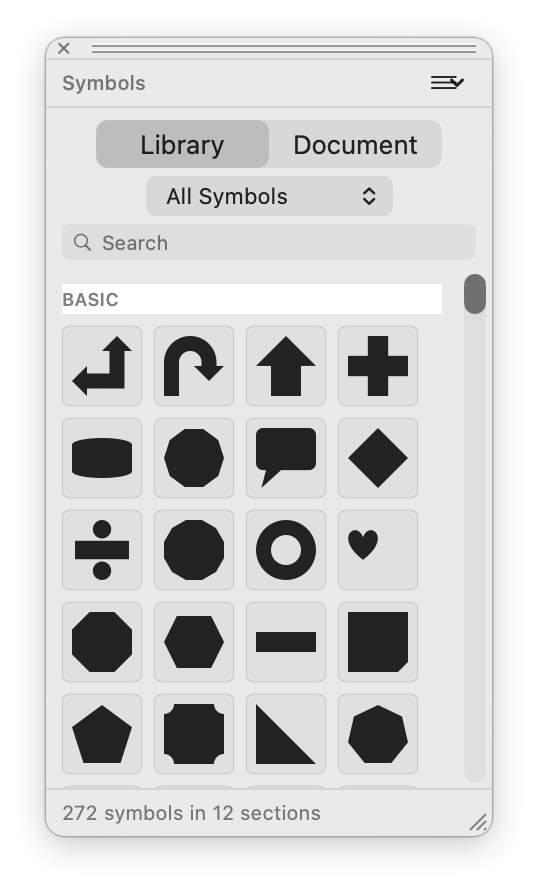
Symbols palette with built-in library symbols Symbols A searchable built-in symbol library with document symbols as a separate tab.
Existing Layers palette screenshot Palette style Compact floating panels keep the app close to the canvas instead of burying controls in inspectors.
Documents

New documents, artboards, units and exact geometry.

SVG Editor is built for measured work. Document settings define artboard size, orientation, units, grid behavior and color mode, while the canvas keeps rulers and guides visible for precise alignment.

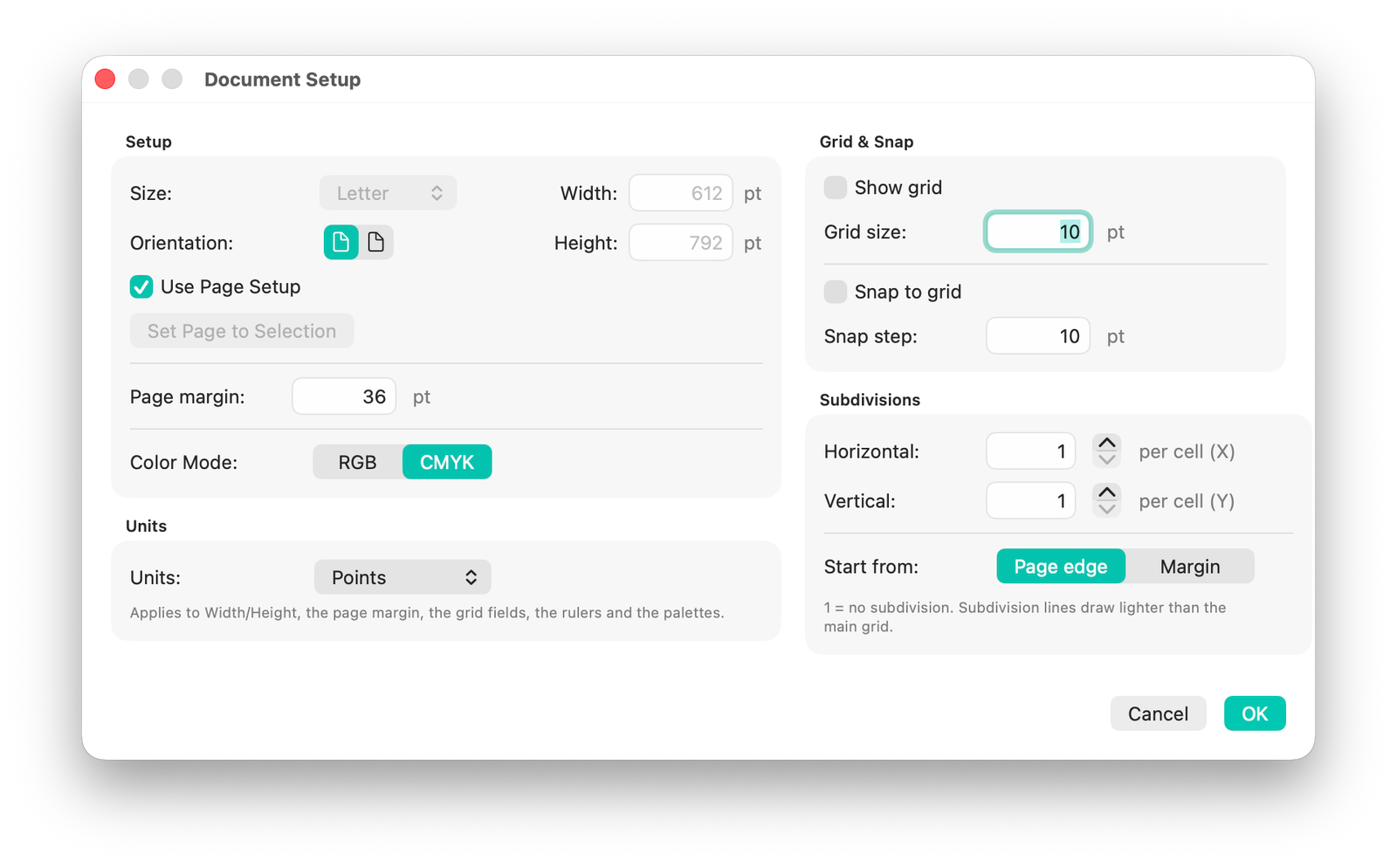
Document Setup

Create or adjust documents with preset sizes such as common print formats, orientation, units, grid settings and document color mode. Document Setup also keeps grid and snap settings in one predictable place.

Because the document remains SVG, these settings help guide editing without hiding the underlying vector artwork.

Document Setup dialog with CMYK mode and grid settings

Rulers and guides

Show rulers with Command + R, drag guides onto the canvas, lock or hide guides, clear guides, and use Smart Guides while moving objects.

Grid and snapping

Show the grid, snap to grid, and snap to points. These controls support icon design, technical layout and repeatable geometric construction.

Measurement and Info

The Measure tool and Info palette expose distance, position and geometry information while editing. They are useful for matching dimensions, checking spacing and documenting layout decisions.

Named undo and redo

Operations such as Image Trace, path edits, palette changes and scripted actions are grouped into meaningful undo steps so complex experiments can be reversed cleanly.

Toolbox

A complete vector toolbox, not just shape buttons.

The Toolbox mirrors the classic two-column vector editor pattern. Every tool is exposed in the UI, most have single-key shortcuts, and many include specialized behavior for production drawing.

Tools palette

The core toolbox includes Selection, Direct Selection, Pen, Free Hand, Spray, Eraser, Line, Rectangle, Rounded Rectangle, Ellipse, Polygon, Star, Text, Text Pencil, Eyedropper, Scissors, Measure, Gradient, Rotate, Scale, Reflect, Shear, Hand and Zoom.

Toolbox palette

Selection and Direct Selection

Use Selection for whole objects, groups and transforms. Use Direct Selection for anchor-level editing, handle adjustment and node-level geometry control.

  • V switches to Selection.
  • A switches to Direct Selection.

Pen and anchor tools

The Pen creates precise Bezier paths. Add Anchor, Delete Anchor and Convert Anchor tools refine a path after it is drawn, making it possible to build clean logos and icons point by point.

  • P switches to Pen.
  • Convert Anchor changes smooth points into corners or reshapes handles.

Pencil / Free Hand

Free Hand drawing turns loose sketches into vector paths. It is best for organic marks, rough lettering, quick shapes and hand-drawn texture that can still be edited afterwards.

Spray

The Spray tool scatters vector marks into an undoable group. Its options palette controls behavior such as density, direction, falloff and randomization seed.

Eraser

The Eraser subtracts real geometry from vector shapes. It removes path areas rather than hiding them with a mask, so the result remains editable vector artwork.

Shape tools

Line, Rectangle, Rounded Rectangle, Ellipse, Polygon and Star tools create editable primitives. They support the usual proportional and centered drawing workflows expected in a vector editor.

Text and Text Pencil

The Text tool creates point text, area type and type on a path. Text Pencil draws with a phrase along a freehand path for expressive typographic strokes.

Scissors, Measure and Eyedropper

Scissors cut paths at specific points, Measure checks distances, and Eyedropper samples styling from existing artwork for fast visual consistency.

Gradient tool

Edit gradient direction and handles directly on the artwork. If the selected element has no gradient, dragging can create a default gradient axis for it.

Transform tools

Rotate, Scale, Reflect and Shear provide direct manipulation and numeric transform workflows for exact geometric changes.

Path editing

Boolean operations, path effects and geometric cleanup.

SVG Editor exposes the path operations expected in a serious vector app. These operations change actual geometry, which keeps exported artwork clean and editable.

Join and Average

Join connects compatible open path endpoints. Average aligns selected points to a shared coordinate, which is useful for repairing tiny gaps and enforcing clean geometry.

Outline Stroke

Converts stroked artwork into filled paths. This is essential when sending artwork to workflows where stroke rendering must be frozen as editable outlines.

Offset Path

Creates an inset or outset copy of a path while preserving curve shape. Use it for badges, stickers, contour lines, shadows and layered icons.

Smooth, Subdivide and Add Anchor Points

Smooth reduces roughness, Subdivide inserts points along path segments, and Add Anchor Points increases editability where more control is needed.

Round Selected Corners

Rounds selected anchor corners without forcing the entire object into a generic rounded rectangle. It is useful for icons, UI assets and softened technical shapes.

Reorient Path

Reorients path direction where direction matters, such as text-on-path behavior, markers, pattern-along-path effects and scripted geometry operations.

Roughen, Trim, Hatch and Pattern Along Path

The path effect pack can roughen geometry, trim a visible section of a path, apply hatch fills, or distribute a pattern along a path. These are committed as vector geometry.

Create Gradient Mesh

Turns selected artwork into a mesh-shaded object through a row and column setup. Mesh gradients support organic shading that ordinary linear or radial gradients cannot produce.

Placeholder: path operations gallery

Generate a visual comparison showing one base shape transformed by Outline Stroke, Offset Path, Roughen, Trim Path, Hatch Fill and Pattern Along Path. This will make the geometry tools easier to understand at a glance.

Image placeholder: path operations Suggested asset: one canvas with before/after columns for Join, Offset Path, Roughen, Hatch Fill and Pattern Along Path.
Objects

Arrange, group, mask, blend, pathfind and prepare artwork.

Object workflows cover the everyday production tasks that turn simple shapes into structured artwork: ordering, grouping, locking, hiding, blending, masking, cropping and converting.

Transform commands

Move, Scale, Rotate, Reflect, Shear, Transform Each and Transform Again support exact repeatable edits. Transform Again Copy repeats a previous transform onto a duplicate.

Arrange and z-order

Bring To Front, Bring Forward, Send Backward and Send To Back control stacking order without disturbing object geometry.

Group, lock and hide

Group related elements, ungroup them later, lock selections to prevent accidental edits, and hide objects temporarily while working inside dense illustrations.

Expand and Expand Appearance

Expand converts supported objects into simpler editable vectors. Expand Appearance bakes styled or generated appearances into explicit geometry.

Flatten Transparency

Turns complex transparency interactions into flattened output when a workflow requires predictable compositing or print handoff.

Rasterize

Converts selected vector content into raster artwork inside the document when a bitmap representation is needed for effects, compatibility or final delivery.

Blend

Blend Make creates interpolated steps between objects. Blend Options controls the step count, and Release dissolves the blend back into editable objects.

Compound Paths

Make Compound Path combines shapes so interior holes and overlapping contours behave as one fill. Release separates the structure again.

Pathfinder

Unite, Minus Front, Minus Back, Intersect and Exclude combine shapes. Divide, Trim, Merge and Crop split or simplify overlaps for production-ready vectors.

Clipping Masks

Make a clipping mask to reveal artwork only through a selected shape, or release it to restore the underlying objects.

Crop Marks

Create Illustrator-style trim marks around selected artwork for print preparation, then release them when they are no longer needed.

Fit Frame to Text

Adjust area text frames to their content, or fit a rectangle to the inked bounds of selected text for layout and label production.

Pathfinder palette

Besides menu commands, SVG Editor includes a Pathfinder palette so boolean operations can be accessed as quick visual buttons during shape construction.

Image placeholder: Pathfinder palette Suggested asset: close-up of the Pathfinder palette next to overlapping shapes before and after Unite, Minus Front, Intersect and Exclude.
Color and styling

Swatches, gradients, mesh, patterns, strokes and effects.

SVG Editor gives color its own production system. Use reusable swatches, edit gradients in a dedicated palette, apply mesh shading, define patterns, style strokes, control transparency and add SVG-based effects.

Gradient and Swatches palettes

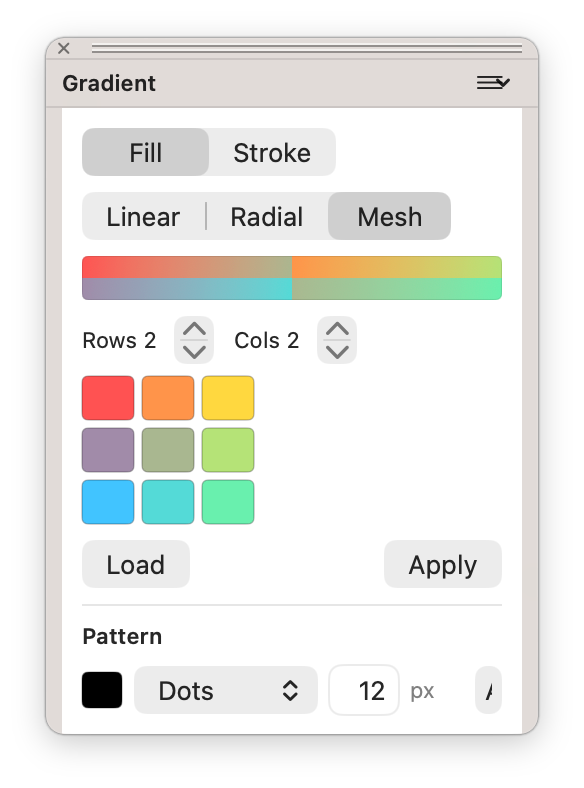
Linear and radial gradients support multiple color stops, stop positions, alpha and spread behavior. Mesh gradients add per-vertex color control for organic shading, while swatches keep documents consistent across many objects.

Gradient palette

Fill and stroke proxies

The Toolbox exposes active fill and stroke. Swap them with X, set active paint to None with /, and reset defaults with D.

Stroke styling

Control stroke weight, arrowheads and related stroke appearance from the Stroke palette and filter/stylize commands.

Named swatches

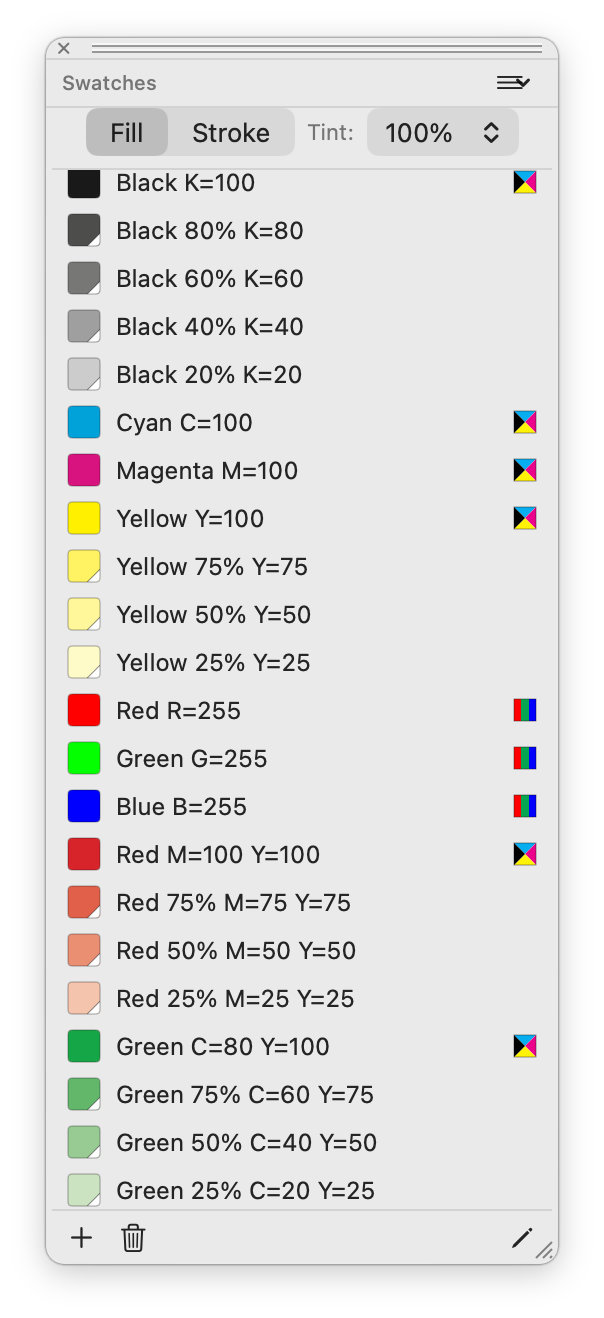
Use process colors, grayscale steps, registration colors, tints and custom swatches. Updating a swatch can retint every element that uses it.

CMYK swatches

CMYK swatches store real C, M, Y and K values from 0 to 100, enabling print-oriented color decisions inside SVG artwork.

Pattern palette

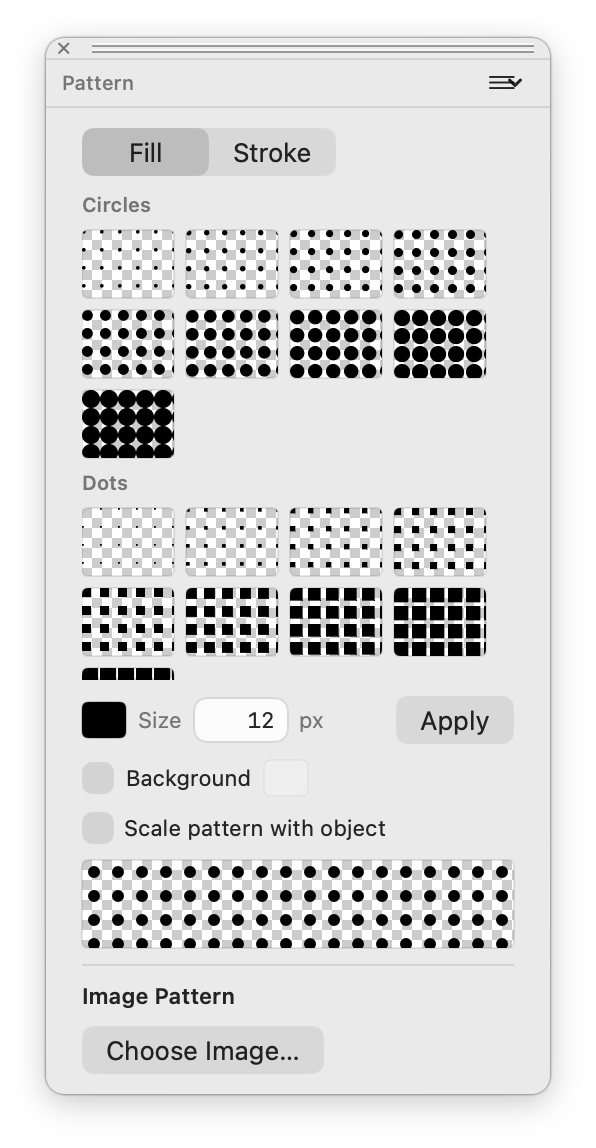
Apply repeating vector pattern fills. Patterns are useful for fabric-like textures, diagrams, decorative surfaces and consistent branded motifs.

Hatch palette

Hatch applies vector tile figures as real hatch fills, giving technical and illustrative artwork a reusable line-pattern vocabulary.

Brushes

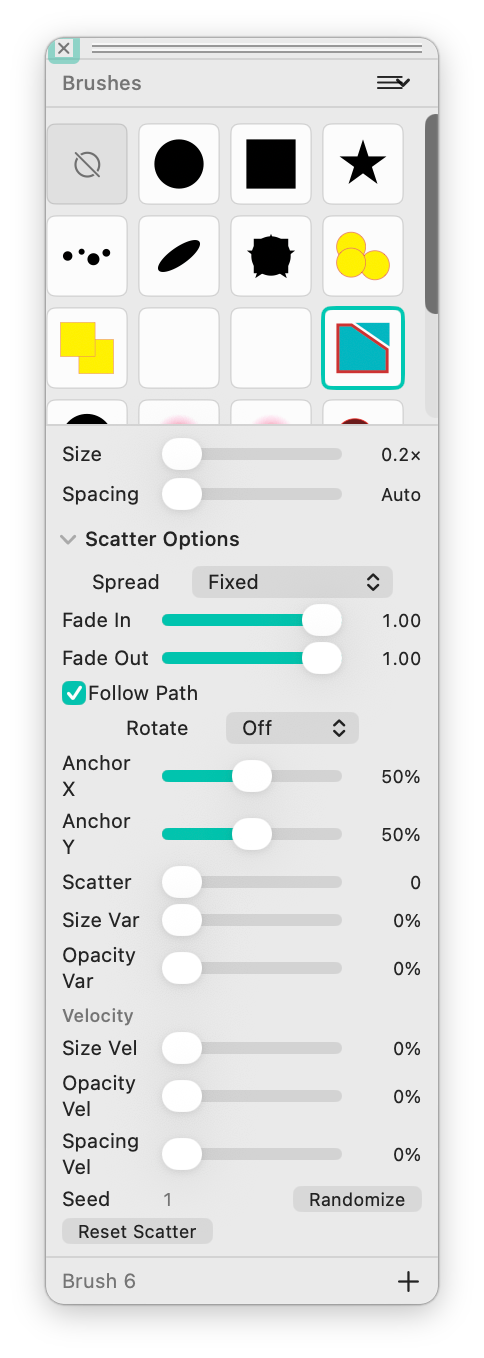
Define brushes from selected artwork and reuse them for repeated marks. Brush workflows support scatter and calligraphic-style artwork.

Symbols

Store reusable artwork as symbols, place repeated instances, and keep complex documents smaller and more consistent.

Transparency and blend modes

Set object opacity and blending from the Transparency palette. Show the transparency grid to inspect alpha behavior visually.

Color filters

Adjust Colors, Blend Front to Back, Blend Horizontally, Blend Vertically, Convert to Grayscale, Invert Colors and Saturate provide batch color transformation tools.

Distort filters

Free Distort, Punk and Bloat, Roughen, Scribble and Tweak, Twirl and Zig Zag reshape selected vector artwork for expressive effects.

Stylize and image effects

Add Arrowheads, Drop Shadow, Round Corners and raster-style Image Effects such as grayscale, sepia, invert, brightness, contrast, saturation and blur.

Swatches palette with RGB and CMYK process swatches CMYK swatches Process swatches, tints and RGB colors can live together in the reusable swatch list.
Pattern palette with dot and circle pattern fills Pattern fills Dot, circle and image-based patterns can be applied to fills or strokes.
Brushes palette with scatter brush controls Brush controls Scatter settings include size, spacing, spread, fade, follow path, anchors, variance and seed.
Symbols palette with basic vector symbols Symbols library Reusable artwork is organized by category and searchable from a dedicated floating panel.
Typography

Editable text for labels, posters, paragraphs and paths.

Text is treated as a first-class vector object. SVG Editor supports quick labels, area text, path text, advanced paragraph controls, threaded frames, text wrap and outline conversion.

Point text

Click once to create simple editable text for labels, callouts, logos and quick annotations.

Area type

Drag a frame to create a paragraph box. Area Type Options control frame dimensions, inset spacing and baseline behavior.

Type on a Path

Attach text to a curve and adjust path alignment, flip, spacing and offset with Type on a Path Options.

Skia Paragraph

An alternate area-text engine uses native paragraph layout for Unicode line breaking and justification. It can sit beside classic area text for comparison.

Font menu with live preview

Browse installed Mac fonts with live preview while moving through the menu. Recently Used keeps active families near the top.

Character palette

Control font family, size, leading, tracking and related type metrics with numeric fields for repeatable typography.

Paragraph palette

Align left, center, right, justify and justify all. Paragraph operations apply to selected text ranges where appropriate.

Change case

Convert selected text to UPPERCASE, lowercase, Title Case or Sentence case without manually retyping it.

Threaded text

Link area text frames so long copy flows from one frame to the next. Create, release or remove threading as the layout changes.

Text wrap

Make area text flow around selected objects, then release the wrap when the story should return to a plain column.

Create Outlines

Convert editable text into vector paths for final logo delivery, print workflows or artwork where font availability cannot be assumed.

Fit Headline

Scale a single-line area text headline so it fills its frame width, useful for poster titles and lockups.

Placeholder: typography system

Generate a screenshot showing point text, area type, type on a path, threaded frames and the Character / Paragraph palettes together.

Image placeholder: typography suite Suggested asset: one canvas with type examples and floating Character and Paragraph palettes.
Images

Placed images, links, tracing, mosaic and live image effects.

Raster images can be opened, placed, linked, embedded, traced, filtered or converted into vector-driven mosaic artwork.

Place Image

Insert raster images into an existing document. Use Command + K for the main Place Image workflow.

Place Linked Image

Keep image artwork linked to its original file rather than embedding it immediately. This supports lighter documents and external asset updates.

Links palette

Track placed image status, relink files, embed images, extract embedded files or reveal a linked asset in Finder.

Open images as documents

PNG, JPEG, GIF, BMP, TIFF, HEIC and HEIF images can be opened as new documents and used as source material.

Image Trace

Convert a selected placed image or imported raster file into editable vector paths, available from Object and Filter workflows.

Object Mosaic

Turn a selected image into a grid of vector or generated tiles based on sampled image color. It is useful for poster effects and stylized raster-to-vector treatments.

Image Effects

Apply SVG filter-based effects such as brightness, contrast, saturation, blur, sepia, invert and grayscale while keeping the artwork editable.

Rasterize selected artwork

Convert selected vector objects to a raster representation inside the SVG when a bitmap treatment is needed.

Placeholder: Links and Image Trace

This should show a placed bitmap, the Links palette, Image Trace options, and the traced vector result beside the original.

Image placeholder: image workflow Suggested asset: before bitmap, Links palette, trace settings, after vector paths.
Import and export

Bring legacy vector files in, ship standard files out.

The app is designed for real-world handoff: it opens modern and legacy vector formats, keeps native work in SVG, and exports deliverables for print, web and imaging workflows.

WorkflowFormatsWhat happens
Native saveSVGDocuments are saved as standard SVG files with editable vector structures.
Vector importSVG, PDF, AI, EPSPDF, Illustrator and EPS files are converted into editable vector artwork rather than flattened previews where possible.
Image importPNG, JPEG, GIF, BMP, TIFF, HEIC, HEIFImages can be opened as documents or placed inside existing SVG documents.
ExportPDF, PNG, TIFFCreate vector PDF or raster deliverables for web and imaging use.
ClipboardIllustrator vector pasteArtwork copied from Illustrator can be pasted into SVG Editor as editable objects.
Share and printSVG, PNG, PDF, print pipelineShare artwork in common formats and print through the native Mac document workflow.

Compatibility note

SVG Editor imports AI and EPS files, but its native working format is SVG. Export focuses on SVG, PDF, PNG and TIFF rather than writing new AI or EPS files.

Print and CMYK

A real print workflow layered onto SVG.

SVG Editor supports RGB and CMYK documents, process swatches, tints, print setup and press-ready vector PDF export with DeviceCMYK separations for CMYK documents.

RGB or CMYK document mode

Choose color mode when creating or setting up a document. The mode is visible in the workspace and influences print/export behavior.

Process-color swatches

CMYK swatches carry C, M, Y and K component values. Tints multiply those separations so print colors remain predictable.

DeviceCMYK PDF export

When a CMYK document is exported to PDF, CMYK swatch colors can be written as native DeviceCMYK values instead of screen-color approximations.

Page setup and print

Use Page Setup and Print for native Mac print workflows. Export PDF and Print use the same native vector pipeline where applicable.

Placeholder: CMYK pipeline

Generate a print-focused visual with the New Document CMYK setting, CMYK swatches, a poster on the canvas and a PDF export confirmation.

CMYK swatches with process colors and tints
AI Vector Generator

Describe artwork. Receive editable vectors.

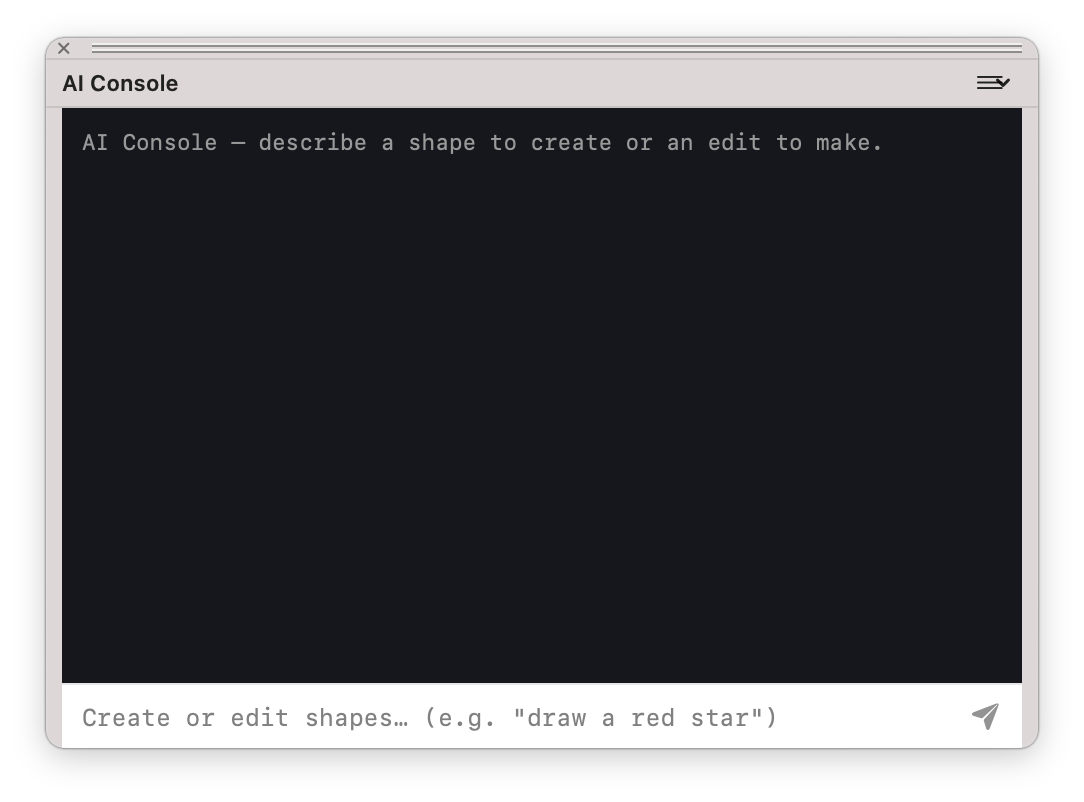
The AI Console turns natural-language requests into document actions. It can insert new vector artwork, edit existing objects, write scripts and respect the active document structure.

A console that works on the document

Ask for a shape, an illustration component, a layer-aware insert, a color change or a whole-document edit. The result is built from vector objects, not a flat image.

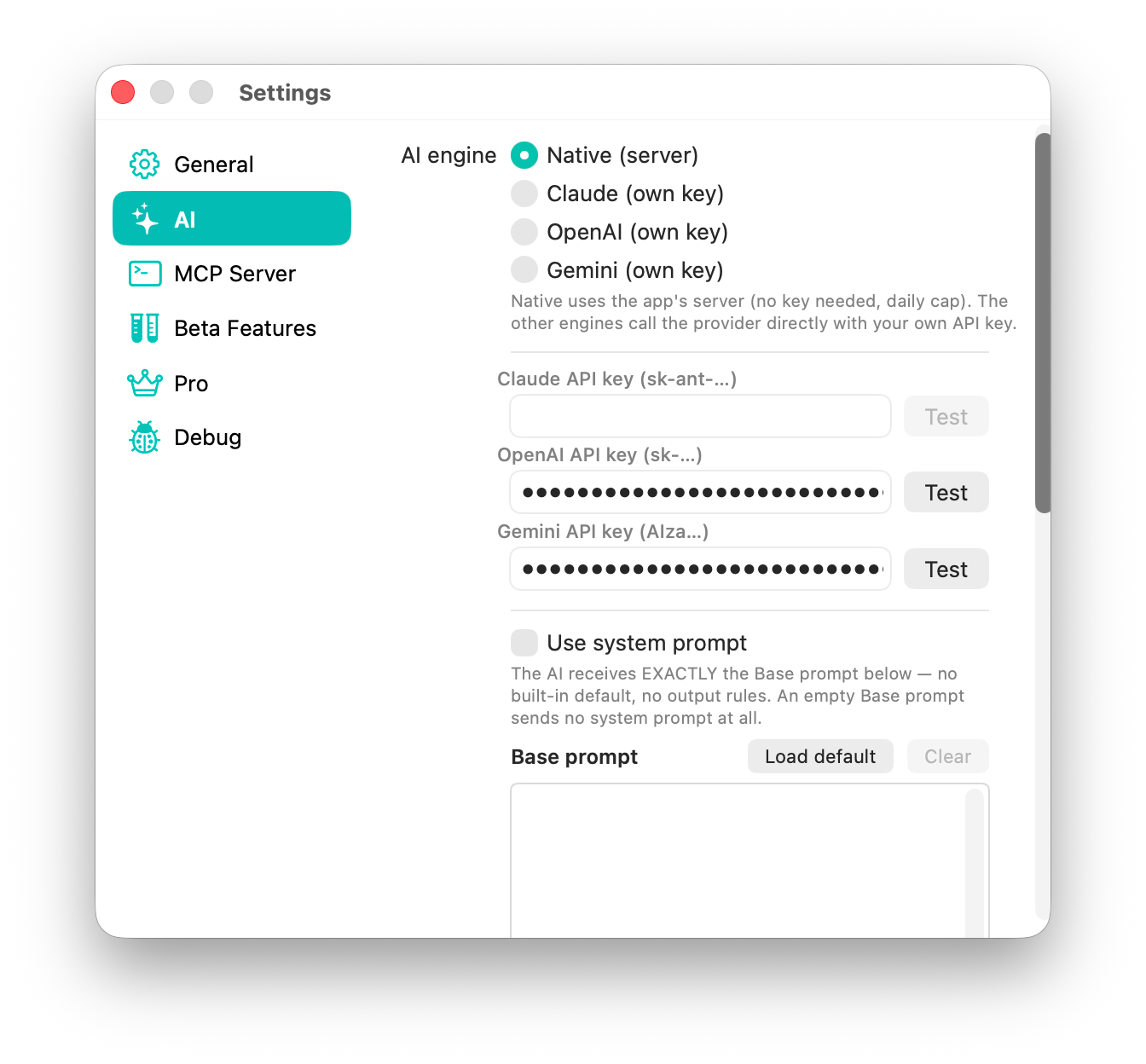
The app can use the built-in assistant allowance, and settings support connecting provider keys for expanded workflows.

AI Console

Vector insertion

Create new shapes, groups, icons and illustrations from plain English. The output is inserted into the current document as editable objects.

Document edits

Ask for targeted changes such as recoloring objects, modifying selected artwork or placing new content on a named layer.

Script-aware workflows

The AI tooling can interact with the same script library used by the Scripts palette, helping generate repeatable document actions.

Visible model and prompt context

The app surfaces AI settings and prompt context so users can understand which assistant configuration is active.

AI provider settings

Settings let users choose the native server engine or connect Claude, OpenAI or Gemini with their own key. The optional system prompt area gives advanced users control over the exact base instruction sent to the assistant.

AI settings with native server, Claude, OpenAI and Gemini options
Automation

Illustrator-style scripting, AppleScript and AI-assistant access.

SVG Editor includes automation surfaces for users who want to generate artwork, batch edit documents, build internal workflows or control the app from other Mac automation tools.

ExtendScript / JSX

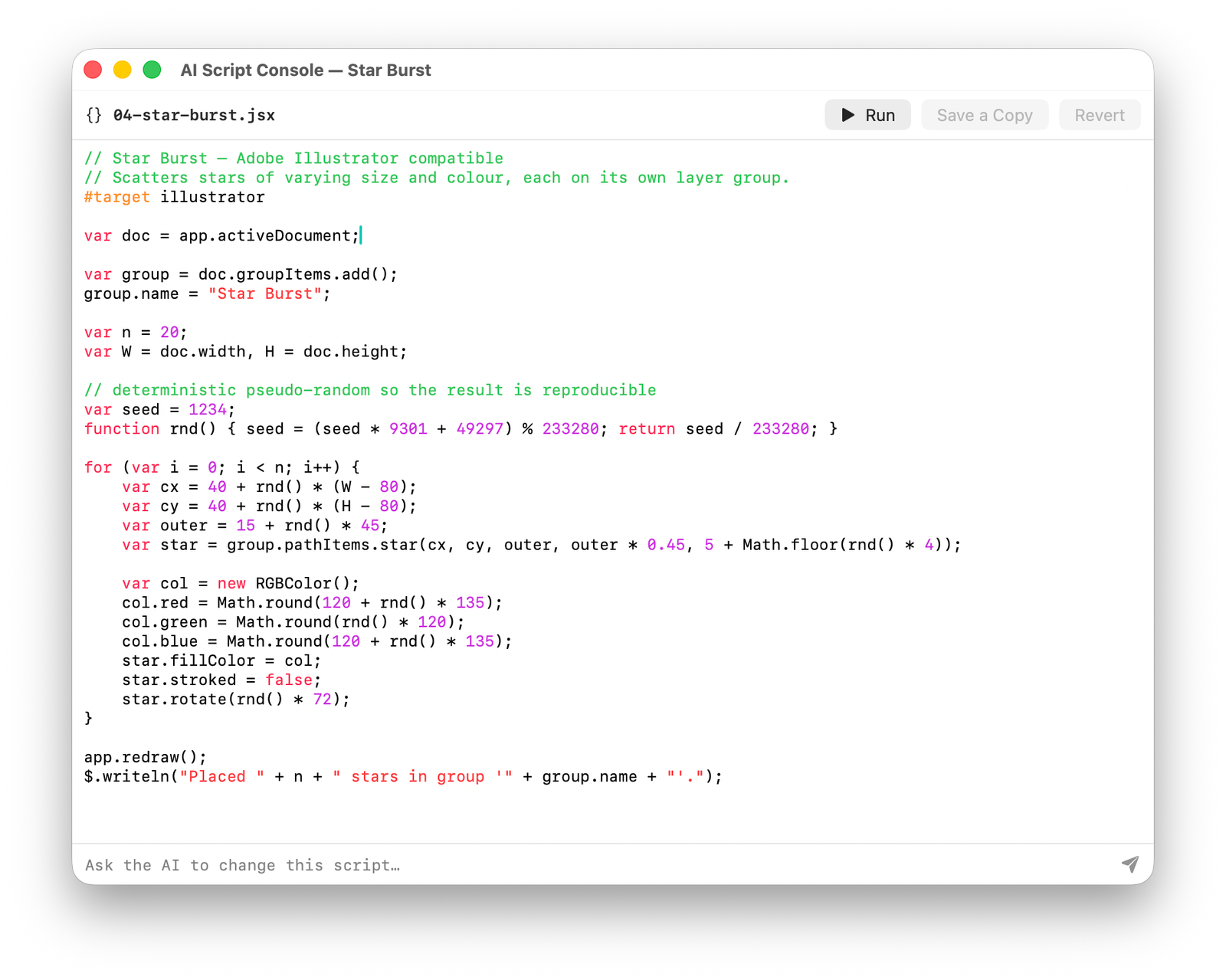
Run Illustrator-style JavaScript through the Scripts panel or File menu. The scripting DOM exposes application, document, selection, layers, path items, group items, text frames, compound paths and color objects.

Bundled demo scripts

Example scripts generate grids, color wheels, spirals, star bursts, text posters and recolor operations. They are useful as templates for custom automation.

User script library

Create new scripts or add existing .jsx and .js files. User scripts appear in the Scripts palette and File menu.

AppleScript

The app ships an AppleScript dictionary, including standard document commands and a custom do script command for running JSX against the active document.

Scripted menu commands

Scripts can call menu-style operations such as pathfinder commands, allowing automation to use the same production features available through the UI.

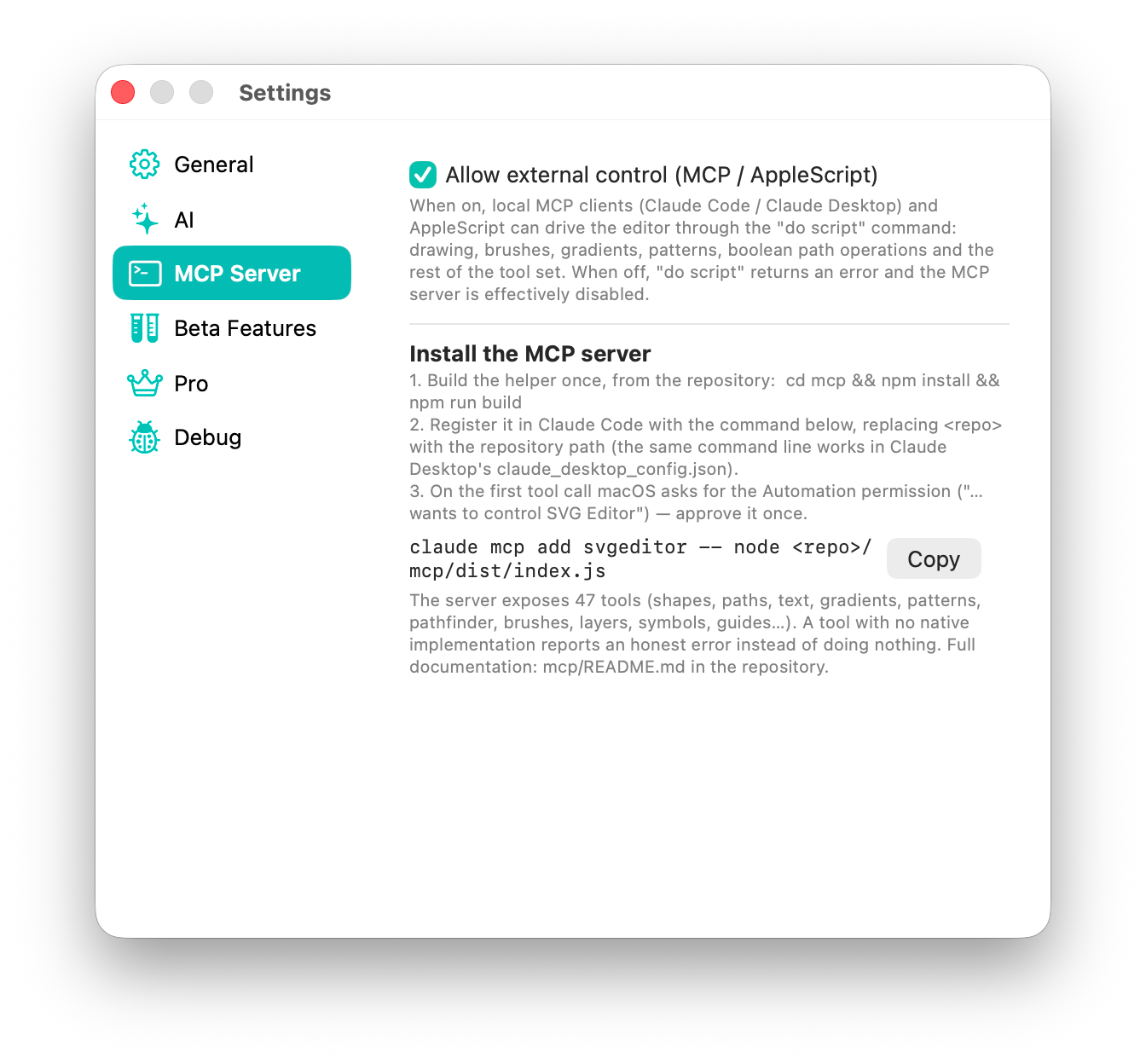
MCP server

The app includes an MCP server surface so AI assistants can access drawing tools and document workflows in controlled automation contexts.

Scripts and generated artwork

The script editor can run Illustrator-compatible JSX examples such as Star Burst. Scripts operate on the active SVG document through the same object model exposed to AppleScript and automation tools.

AI Script Console editing a Star Burst JSX script

MCP and AppleScript control

The MCP Server settings expose external control for local MCP clients and AppleScript. When enabled, automation can drive drawing, brushes, gradients, patterns, pathfinder operations, layers, symbols and guides through the app's script bridge.

MCP Server settings with external control enabled
View and performance

Inspect artwork in the mode that matches the task.

The View menu includes outline, pixel preview, zoom controls, transparency grid, rulers, guides, grid snapping, display quality and live GPU rendering control.

Outline / Preview

Toggle between normal preview and outline mode with Command + Y. Outline mode makes path structure visible without styling distractions.

Pixel Preview

Inspect how vector artwork rasterizes, useful for icons, web graphics and detailed screen assets.

Zoom controls

Zoom in, zoom out, fit in window, actual size and zoom to selection support fast navigation in large documents.

Edges, artboard and page tiling

Hide or show edges, artboard and page tiling depending on whether you need construction details or a cleaner artwork preview.

Transparency grid

Show a checkerboard grid to evaluate transparent objects and alpha-heavy artwork accurately.

Display Performance

Switch between Fast Display, Typical Display and High Quality Display to balance render quality and editing speed.

GPU Rendering

Toggle Skia GPU rendering live. The GPU backend uses Metal for faster canvas performance, while CPU rendering is available as a direct rendering mode.

Dark mode

The app supports modern macOS appearance behavior, making long editing sessions more comfortable in different lighting conditions.

Pixel preview and canvas inspection

Use Pixel Preview, Outline mode and transparency grid together to inspect the same artwork as geometry, pixels and composited output.

Pixel Preview
Image production plan

Real screenshots added, with a few visuals still to generate.

The encyclopedia now uses the supplied Mac app screenshots for core palettes and settings. The remaining placeholders are targeted composite visuals that should be generated or captured later.

Path operations

Before/after canvas showing Outline Stroke, Offset Path, Roughen, Hatch Fill and Pattern Along Path.

Pathfinder palette

Close-up of Pathfinder controls next to overlapping shapes and four boolean results.

Typography suite

Point text, area type, type on a path, threaded frames and Character / Paragraph palettes.

Image workflow

Placed bitmap, Links palette, Image Trace options and final vector result.

Inserted screenshots

Control Palette, Layers, Swatches, Pattern, Brushes, Symbols, Document Setup, AI settings, MCP settings and AI Script Console are now real page assets.

Print export visual

A final DeviceCMYK PDF export screenshot would complete the print section beside the existing CMYK setup and swatches screenshots.